
Guides
One job each, from the photo to the print. For what every setting does, see the docs.
Start here
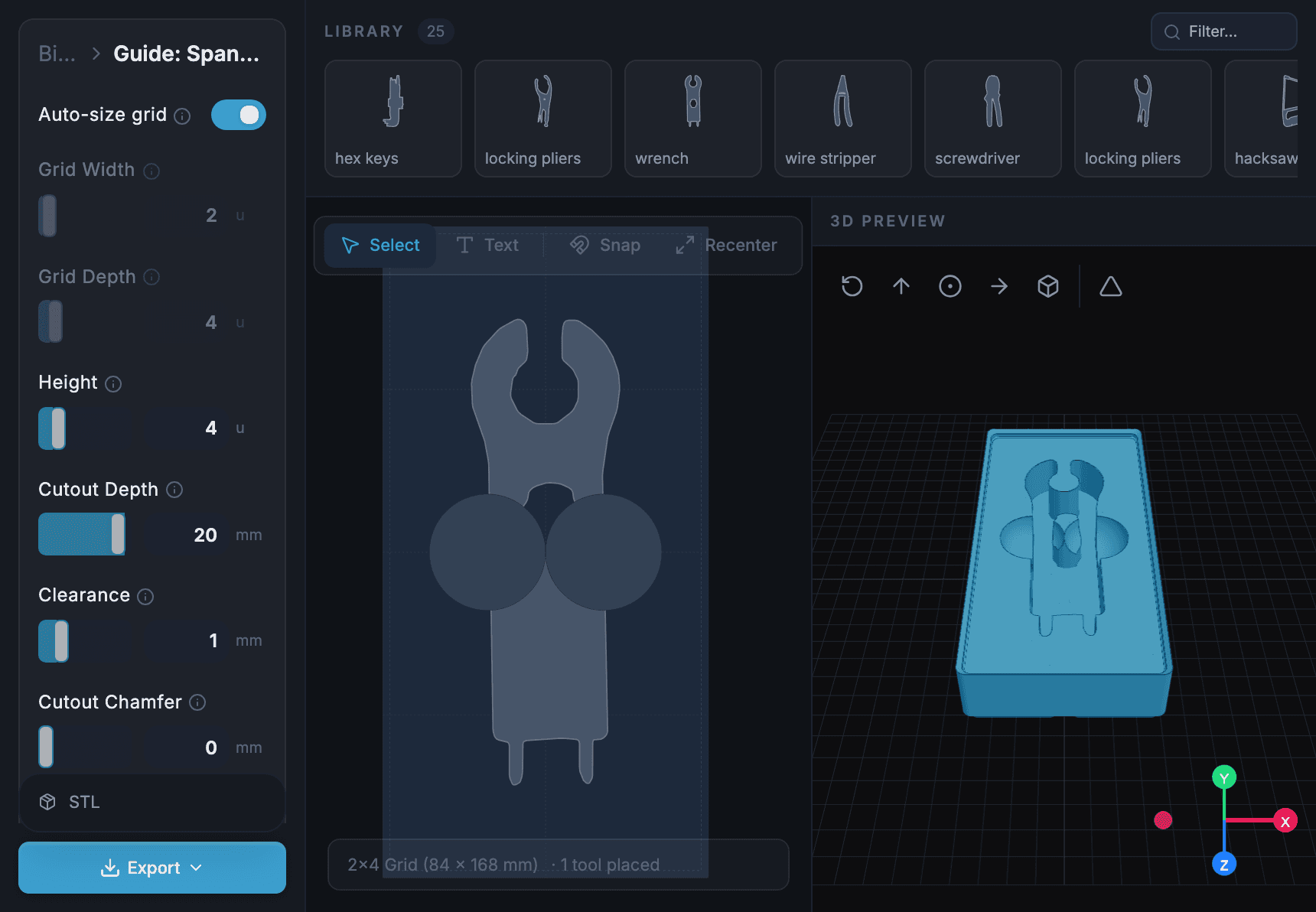
Make your first bin from a photo
The whole path once: photograph a tool, set the corners and paper size, trace it, check it, then make a bin and print it.
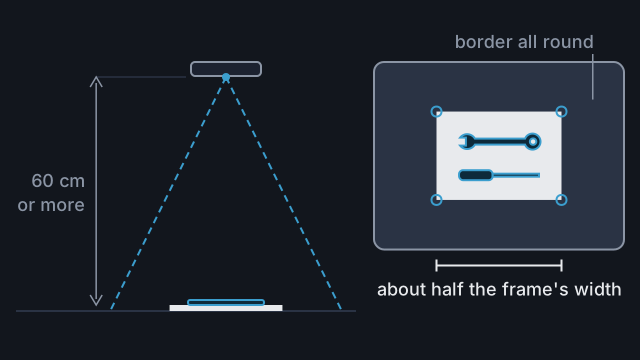
Take a photo that traces accurately
Set up the sheet, surface and light, then frame the photo so Tracefinity scales and traces your tools correctly.
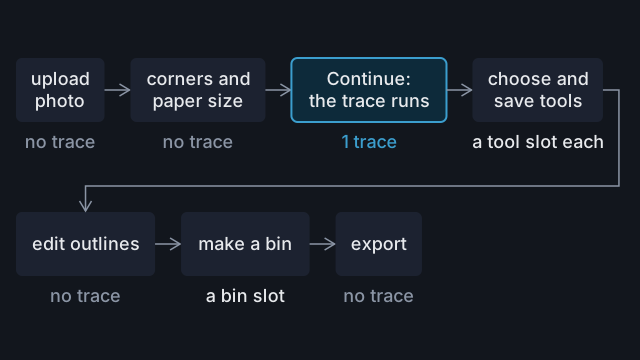
Make your traces go further
What uses a trace and when it counts, how to get several tools from one photo, the free monthly bonus and when an upgrade makes sense.
Photos and tracing
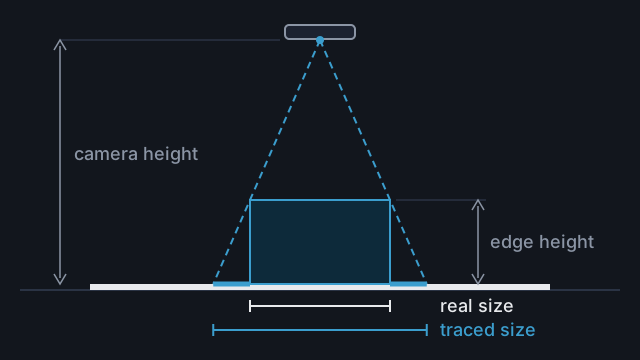
Trace tall or thick objects at the right size
Why tall objects trace too large, and how to shoot, measure and set the size so the pocket fits.
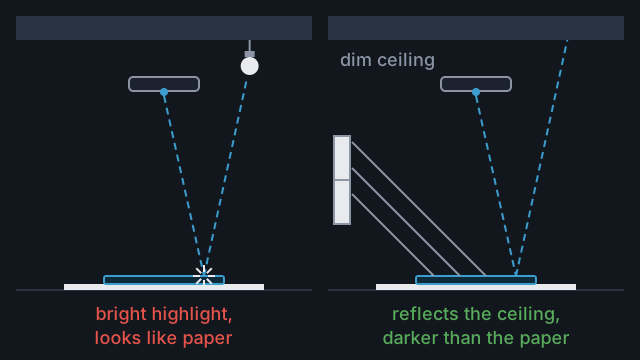
Trace shiny, chrome or black tools
Set up light and background so chrome, black and pale tools trace cleanly, then fix any outline that still comes out wrong.
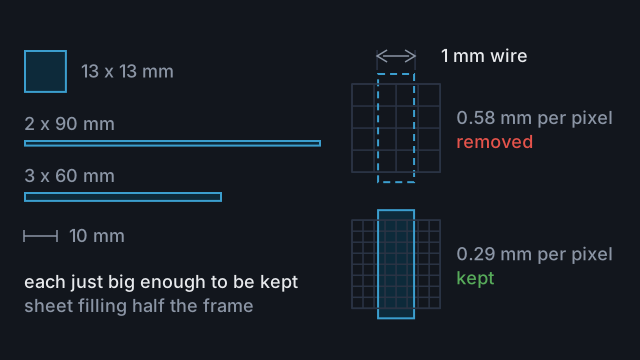
Trace small or thin tools
How small a tool Tracefinity keeps, how thin a part survives, and how to frame bits, hex keys and blades so they trace whole.
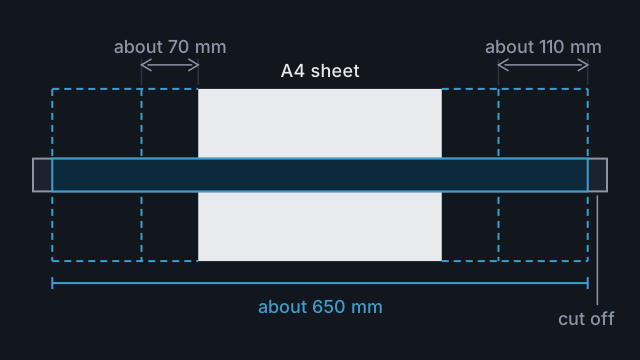
Trace tools longer than the sheet
How far a tool can hang off the sheet, when to use A3 or Tabloid, and how long a bin a long tool can have.
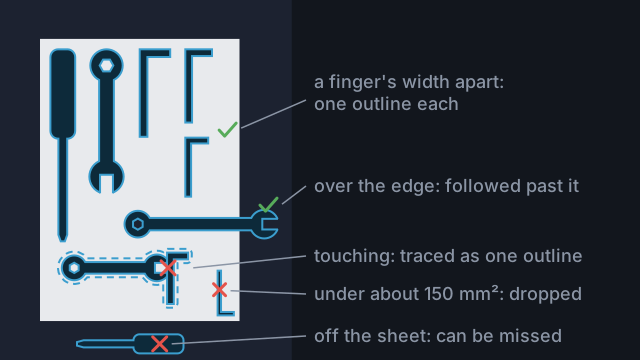
Trace a whole set in one photo
Lay a set out on one sheet, trace it once, then pick and name the tools to keep within your plan's limits.
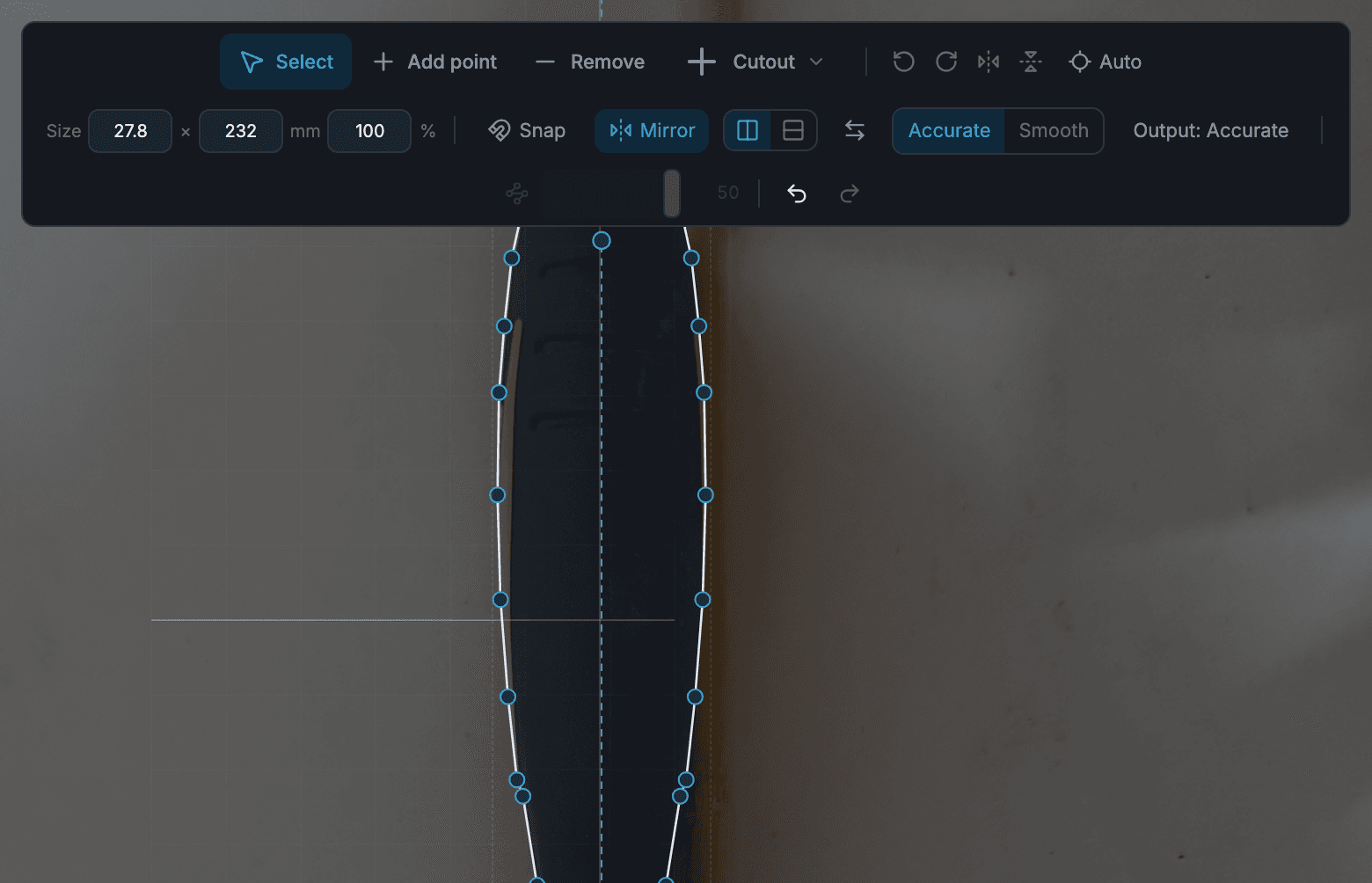
Fix a trace that's slightly off
Repair a missing part, a shadow, a stray hole or a ragged edge in the tool editor, mirror symmetric tools, and know when to trace again.
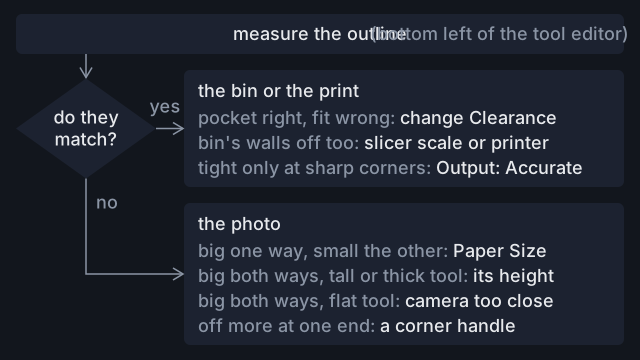
Fix a cutout that comes out the wrong size
Find out whether a pocket that rattles or binds comes from the photo, the paper size, Clearance or your printer, and fix that cause.
Designing bins
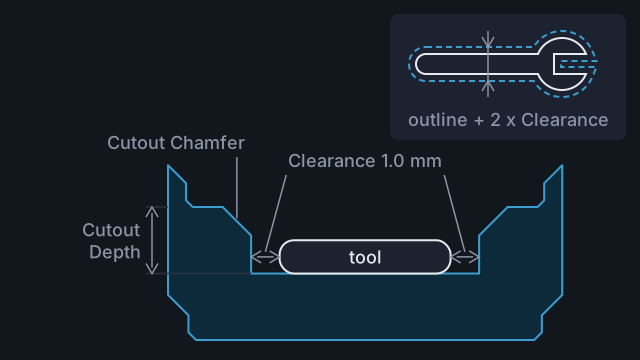
Get a snug fit
Check the outline on paper, print a shallow test pocket, then set Clearance so tools drop in without rattling.
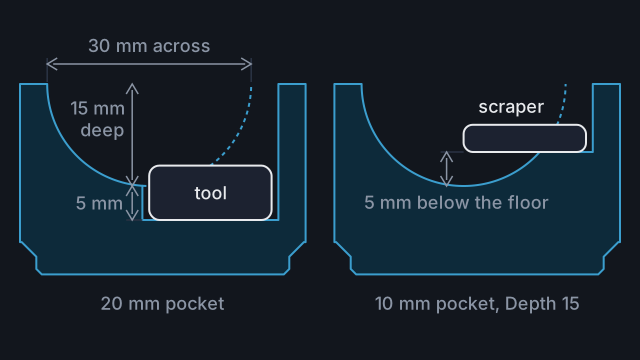
Add finger holes so tools lift out
Put a finger hole on the edge of a tool's outline, make it deep enough to reach the tool, and keep it clear of the walls.
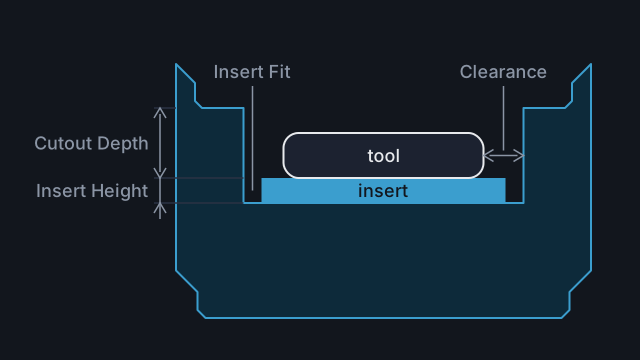
Make a two-colour bin with a contrast insert
Print a thin insert in a second colour for each pocket, so an empty pocket shows the shape of the missing tool.

Label a bin
Add raised or recessed text to a bin, keep it where it will print, and print it in a second colour.
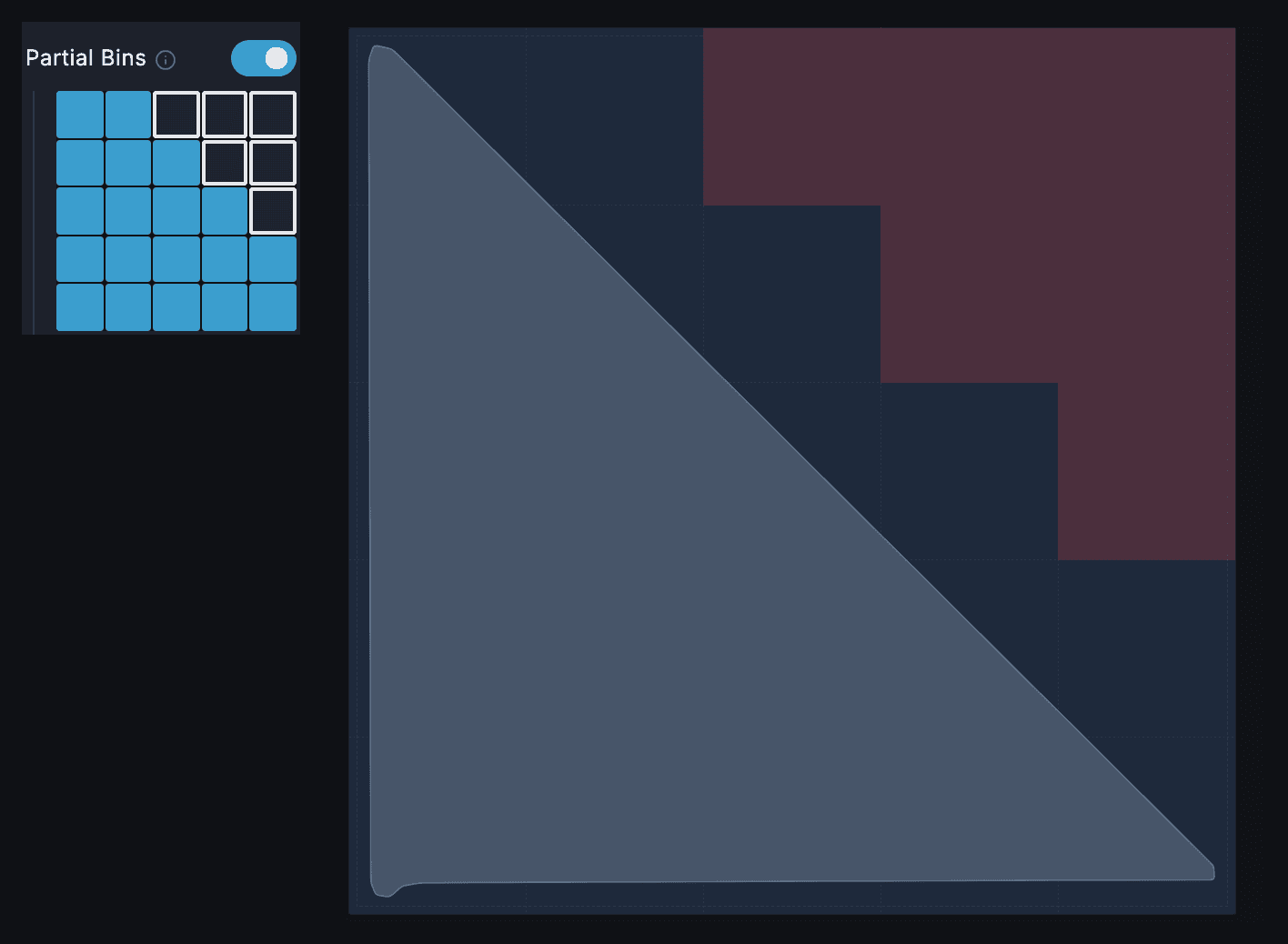
Save filament with partial bins
Switch off the grid cells your tools do not need, pick how the rest prints, and keep the pockets whole.
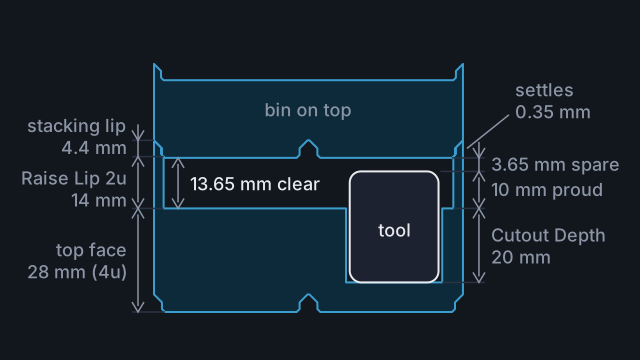
Stack bins over tools taller than their pocket
Use Raise Lip so a bin stacked on top clears a tool that sticks up out of its pocket, and work out how many units it needs.
Printing and planning
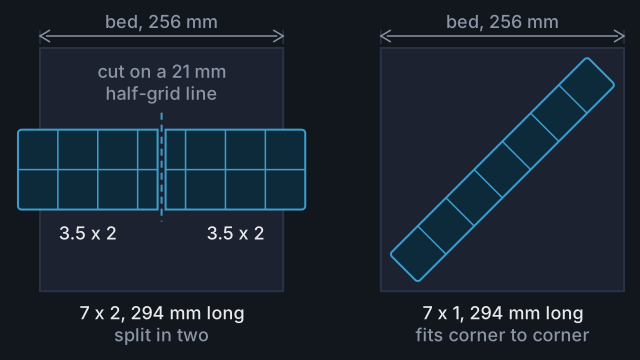
Print a bin bigger than your printer bed
Set your bed size, see where Tracefinity cuts an oversized bin, export the pieces and join them in the baseplate.
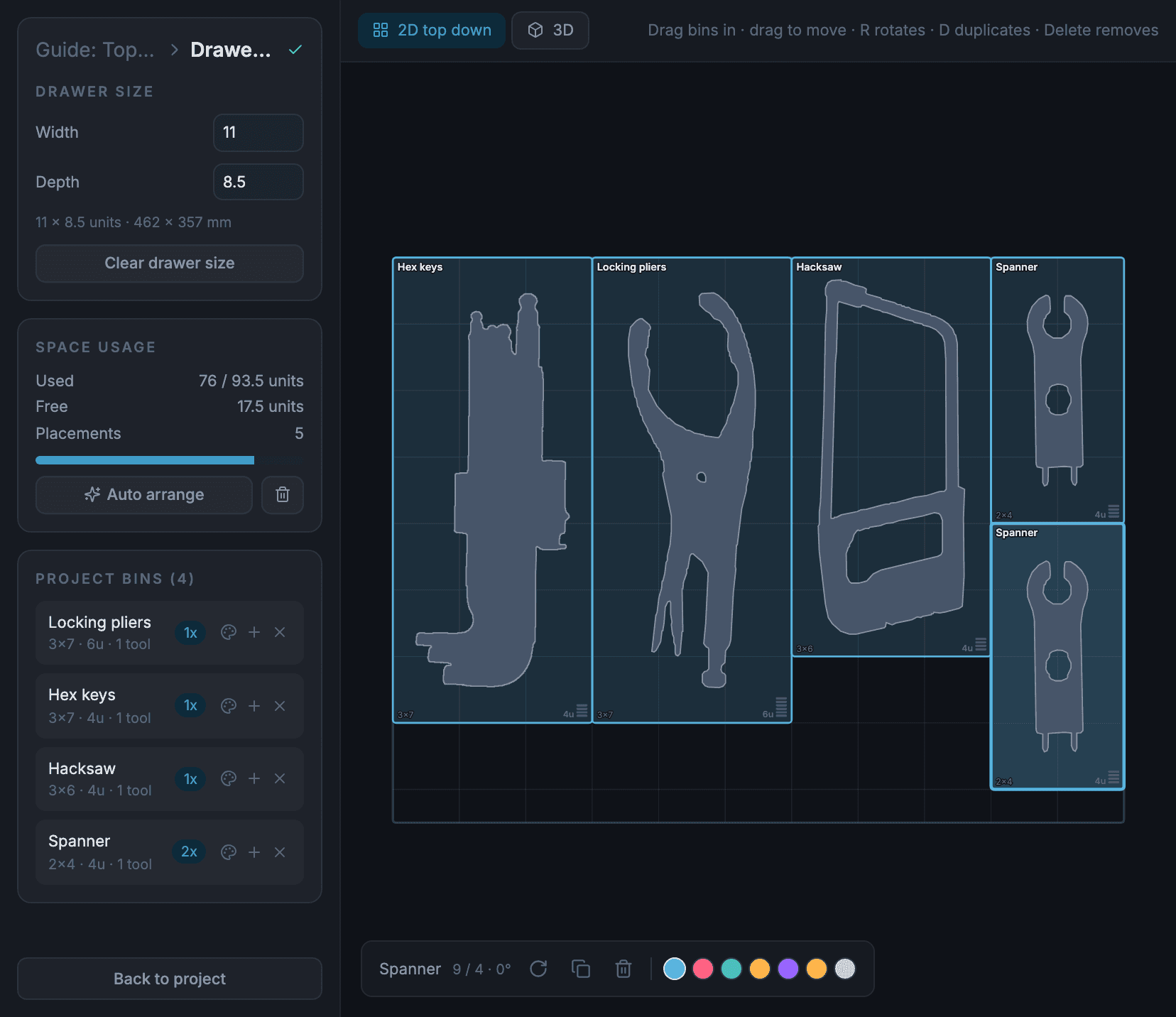
Plan a whole drawer
Measure a drawer, make a project and its bins, then lay them out in a drawer plan and check the fit in 3D before you print.
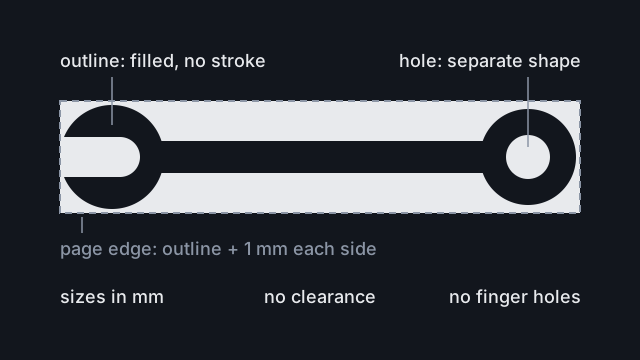
Use outlines for laser cutting, CNC and foam
Export a tool's outline as a full-size SVG, import it at the right scale, and add the clearance a pocket needs.